A throwaway address,
one click into the page.
The extension creates addresses, keeps the inbox in the toolbar, and pulls verification codes out of arriving mail so you can put them straight into the form that asked for them. Chrome and Firefox.
Add it to your browser
Pick a store. The icon lands in the toolbar as soon as it installs — pin it if your browser hides new extensions.
No account is required to install it. Sign in later only if you want addresses to persist.
Everything happens in the toolbar
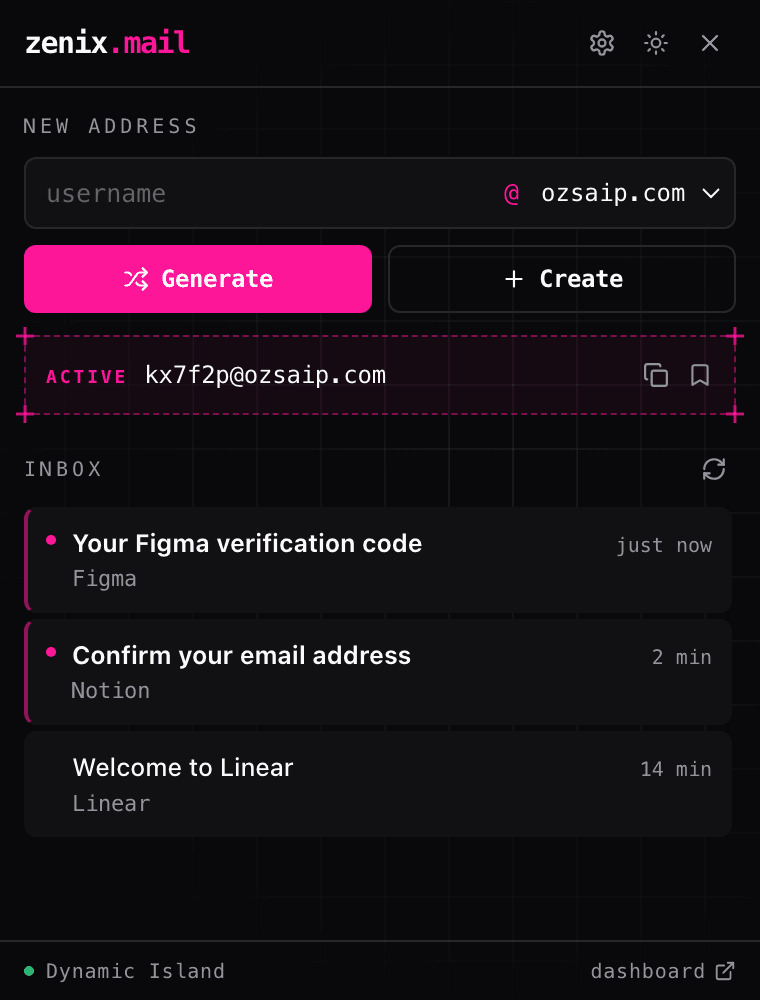
Click the icon and the popup opens with the address bar on top and the inbox underneath. Nothing sends you to a tab.
- Generate, or name it yourself
- Take a random address, or type the local part and pick a domain before you create it.
- Saved addresses
- Signed in, your username@domain is kept and reused instead of regenerated every time.
- Shared with the site
- One API key links the extension to your account, so the same inbox shows in both.
- Inbox in the popup
- Messages arrive without a refresh. Open one to read the body, or copy the code off the list.
The v2 layout shown above, and what new installs get.
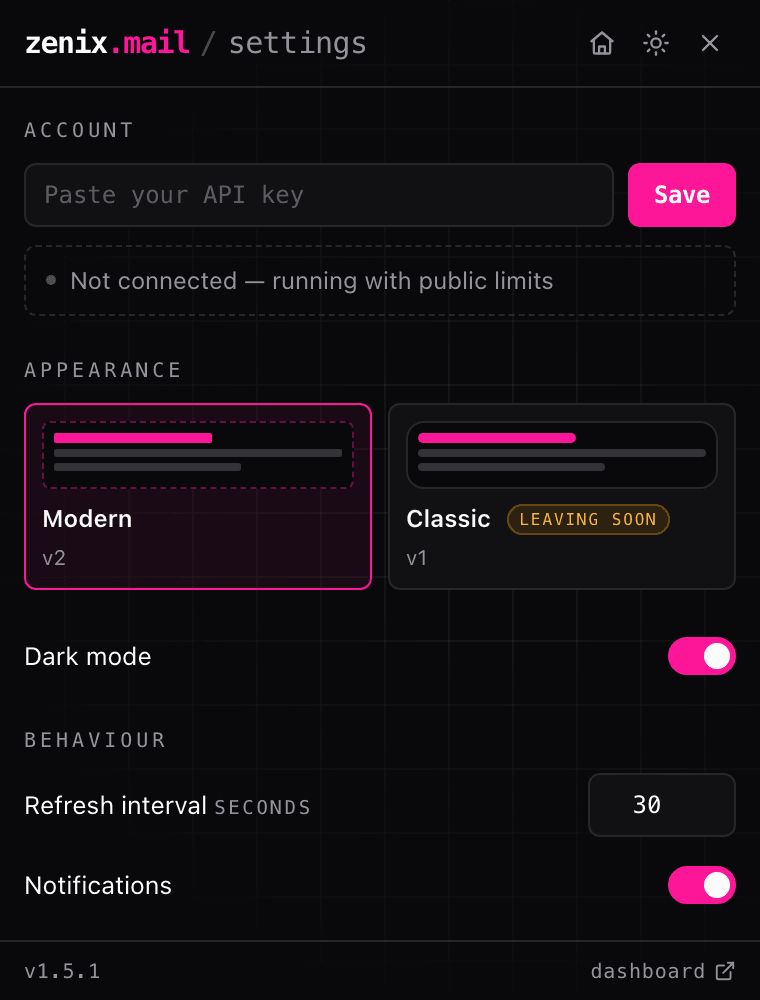
The original v1 popup. Still selectable in settings, but it is being retired — move to Modern when you can.
Connect it to your account
Open the extension’s settings from the popup. One key ties it to your Zenix account; the rest is preference.
Paste a key from your account settings once. That is what links saved addresses across the site and the extension.
Modern is the default. Classic is the original v1 layout, kept for now and on its way out.
Toggle the in-page code banner, autofill, and the unread count on the toolbar icon.
Need a key? Generate one in account settings.
The code comes to the page you are on
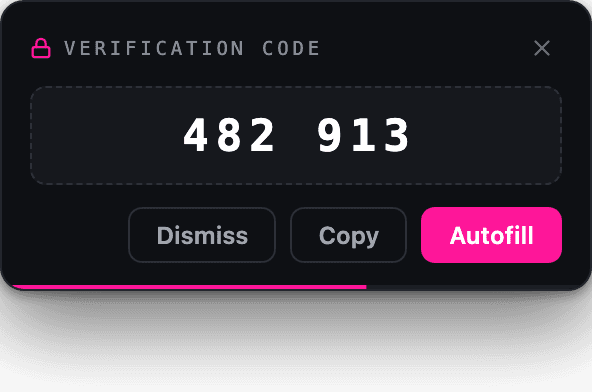
When mail arrives at your address, the extension reads the code out of it and shows this banner on the tab in front of you. No switching windows to copy six digits by eye.
Puts the code on the clipboard and leaves the form to you.
Finds the code field on the page and types it in for you.
The banner stays 30s, then dismisses itself. Dismiss clears it early.
While your cursor is on it the countdown stops, so it never vanishes mid-click.
On macOS the code can go to the Dynamic Island instead — see below.
- One field
- A single input expecting the whole code is filled in one go.
- One box per digit
- Split inputs get a digit each, in order, with the events a form needs to notice.
- one-time-code
- Fields marked autocomplete="one-time-code" are honoured and preferred over guesswork.
Anything that is not a verification code shows as an unread count on the toolbar icon. Open the popup to read it. Nothing is injected into the page for ordinary mail.
Chrome says “Permission needed”, and this site says the extension is missing
Chrome installs extensions that can read every site with site access set to On click. That stops the content script from running until you click the icon, so the banner never appears and this page reports the extension as not detected. Grant access to all sites once:
- 1
Open chrome://extensions in a new tab. (Links to it cannot be clicked — paste it.)
- 2
Find Zenix TempMail and click Details.
- 3
Scroll to Site access and choose On all sites.
- 4
Reload the tab you were signing up on. The “Permission needed” label on the icon goes away.
Firefox grants host permissions at install time, so this does not come up there.
Building against the same inboxes? Read the API docs.